Rule Conditions
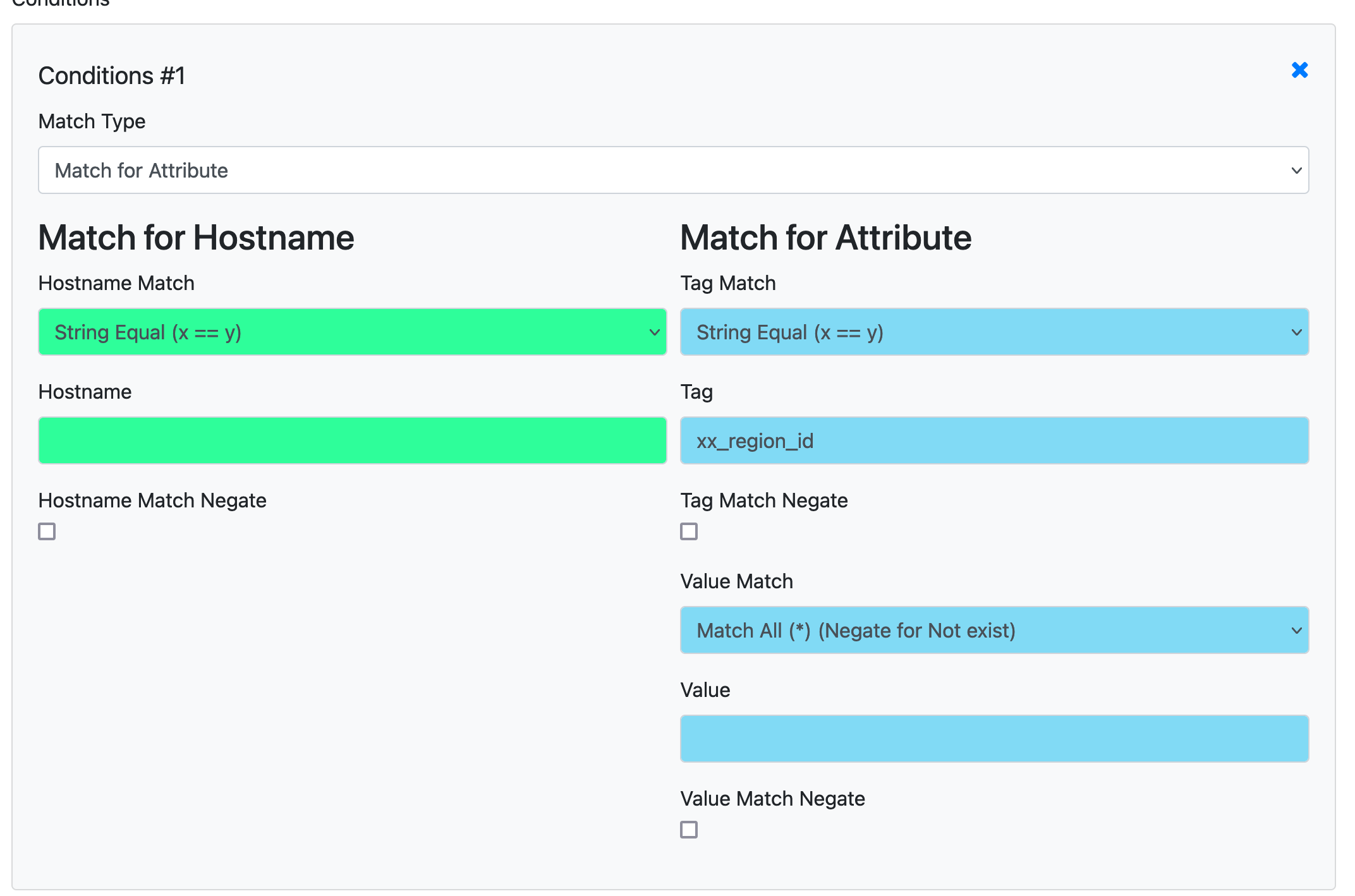
Every rule has a condition section that controls which hosts the rule applies to. You can match by hostname or by attribute, with a wide range of comparison operators.
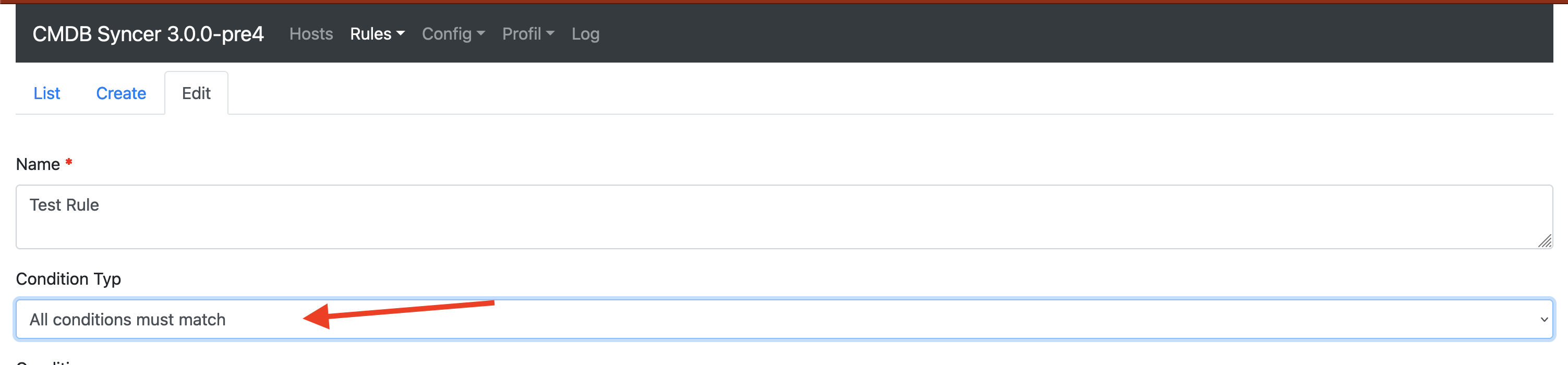
Set the condition mode at the top of the rule to control how multiple conditions are combined:
- ANY — one matching condition is enough for the rule to match
- ALL — every condition must match
- Anyway — the rule always matches, regardless of conditions
Condition Types
All string-based conditions are case-insensitive, except regex.
| Condition Type | Description | Case Sensitive |
|---|---|---|
equal |
Attribute exactly equals the given value | No |
in |
Given string is contained in the attribute value (works with strings and lists) | No |
not_in |
Given string is NOT contained in the attribute value (works with strings and lists) | No |
in_list |
Attribute value is found in your comma-separated list | No |
string_in_list |
Your string is found in the attribute's Python/comma-separated list | No |
swith |
Attribute starts with the given string | No |
ewith |
Attribute ends with the given string | No |
regex |
Attribute matches the given regular expression | Yes |
bool |
Attribute matches a boolean True/False value | — |
older_than |
Attribute value is a timestamp older than the given age (2d, 12h, 30m, 1w, plain number = days). Value match only |
— |
newer_than |
Attribute value is a timestamp not older than the given age (same notation). Value match only | — |
ignore |
Always matches (negate to check that attribute does not exist) | — |
Every condition can be negated with the corresponding negate checkbox, which inverts the match result.
Older Than / Newer Than
Since version 4.4, two condition types compare an attribute holding a date against the clock instead of against your text. They are offered under Value Match only: a hostname and an attribute name are never a date, so Hostname Match and Tag Match do not list them.
- The value field holds an age: a number followed by
m(minutes),h(hours),d(days) orw(weeks). A number on its own counts days, so2is the same as2d. - An age the Syncer cannot read (e.g.
two days) raises an error that names the accepted notation, just like a broken regex. - The Syncer stores its own timestamps in UTC and compares in UTC. A date imported from elsewhere may be an ISO string; one carrying a timezone offset is converted to UTC first.
- An attribute that is not a date never matches, in either direction. A host without the attribute falls through both an
Older Thanand aNewer Thanrule.
Careful with negate
A negated Older Than 2d ("not older than two days") also matches every host that has no date at all. If you mean "seen within the last two days", use Newer Than 2d instead.
A rule that uses one of these conditions, or that renders syncer_last_seen / syncer_last_sync into a Jinja value, can change its answer while nothing about the host changes. Such a rule set is therefore never answered from the export cache; every other rule set stays cached as before.
Built-in Attributes
Besides the host's labels, inventory and custom attributes, every rule can match on these attributes, which the syncer provides automatically:
| Attribute | Description |
|---|---|
SOURCE_ACCOUNT |
Name of the account the host was imported from (empty for manually created hosts) |
syncer_last_seen |
When an import last saw the host (UTC). Missing on hosts no import has seen yet |
syncer_last_sync |
When an import last changed the host (UTC). Missing on hosts no import has changed yet |
They are also available in Jinja values, e.g. {{SOURCE_ACCOUNT}}.
Match FAQ
Limit a rule to the hosts of one import account
If you import from several accounts (e.g. one per object type) and need different rules per account, use SOURCE_ACCOUNT:
- Set Tag Match to
String Equaland Tag toSOURCE_ACCOUNT - Set Value Match to
String Equaland the value to the account name, e.g.jira-prod-vms
This works in every rule type, including export rules, so an export can be restricted to the hosts of a single import account without relying on hostname patterns.
Match hosts that were not seen for a while
Since version 4.4 no Jinja is needed for this. Switch a host off once an import has not seen it for two days, and on again as soon as it is back, with two rules — for example in the Checkmk rule Set Folder and Attributes of Host:
Rule "switch off":
- Match by attribute, Tag Match
Exact Match, Tagsyncer_last_seen - Value Match
Older Than, value2d - Outcome: e.g. Criticality
offline
Rule "switch on again":
- Same condition, but Value Match
Newer Than, value2d - Outcome: e.g. Criticality
prod
Leave both negate checkboxes empty. Hosts without a syncer_last_seen match neither rule.
Match if an attribute does NOT exist on a host
- Set Tag Match to
Match All (*) - Set Tag to the attribute name you want to check
- Enable the Tag Match Negate checkbox
- The value match does not matter
Match if an attribute is an empty string
Note
To prevent empty attributes from being imported at all, set LABELS_IMPORT_EMPTY=False in local_config.py.
- Set Tag Match to the attribute name
- Set Value Match to
String Equal - Leave the value field empty (that is the empty string)
Match a key in a dictionary
If an attribute contains a dictionary (e.g. {"status": "active", "env": "prod"}), you can match against a specific key using the in condition type.
The in condition checks whether your string is contained in the string representation of the attribute value. For structured data, use a Jinja rewrite rule first to extract the key into a flat attribute, then match against that.
Match using regex with capture groups
When using regex, you can reference the first matching value in rewrite rules via the special placeholder {{FIRST_MATCHING_VALUE}}. See Rewrite Attributes for details.
Use in_list vs string_in_list
These two types are often confused:
in_list: Your rule provides the list. The host attribute is checked against whether it appears in your list. Example: host hasos=windows, your list iswindows,linux,macos→ matches.string_in_list: The host attribute is the list. Your rule provides the string to look for inside it. Example: host hasservices=dns,dhcp,ntp, your string isdns→ matches.