Accounts
An Account is the central configuration unit in CMDBsyncer. Every external system the syncer communicates with — whether as an import source or an export target — requires exactly one account. The account holds all the connection details, credentials, and behavior settings for that system.
Without an account, no data can be read from or written to an external system. This applies to every supported integration: Checkmk, Netbox, Jira, REST APIs, CSV files, and all others.
You will find the account settings under Settings → Accounts in the navigation.
Basic Fields
| Field | Description |
|---|---|
| Name | Reference name for the account, also used on the command line |
| Type | Account type — controls which fields and validation apply |
| Is Master | This account can overwrite data from other accounts on import |
| Shadow Source | Import only next to the existing data of hosts, to test a new source (see below) |
| Restrict to | Limit the account to import only or to inventorize only (see below) |
| Is Object | Imported entries are stored as Objects, not Hosts (see below) |
| Object Type | Classifies the object type for filtering and special behaviors |
| Address | URL or hostname of the target system |
| Username | Login username for the account |
| Password | Password or API secret for the account |
| Custom Fields | Additional plugin-specific fields (appear after the first save, if applicable). Each field explains itself in the form: the line under it says what it configures |
Tip
Not every field is required for every integration. An API account typically only needs Name, Address, and Password (as the API token).
About Objects and Object Types
By default, every imported entry is stored as a Host. Setting the Is Object flag changes this: the entry is stored in the Objects view instead and will not be exported to other systems as a host. However, all attributes of objects remain available in rules and can be referenced there.
This is useful for configuration items that are not hosts themselves — for example, locations, contracts, or clusters — but whose attributes you want to use in your rules.
Object Types
Object types are assigned during import and serve two purposes:
- They allow you to filter which objects are used in a specific export.
- Some types have additional behavior: if the type is set to Host, any imported entry with an invalid hostname is rejected and logged as an error rather than saved silently.
Restrict to Import or Inventorize
Most integrations can be used in two directions: import creates and owns hosts, inventorize only adds data to hosts that already exist. Restrict to limits an account to one of them:
- No restriction (default): the account can be used for both.
- Only Import: every inventorize run with this account stops with a message and writes nothing.
- Only Inventorize: the account cannot import hosts of its own. The run stops with an error before the first host is written.
Use it for an account that should only enrich hosts another system owns, or to make sure a cron entry that was pointed at the wrong command cannot quietly create hosts. The setting applies to every plugin and to the CLI, the cron jobs and the API alike.
Shadow Source: test a new import source
When hosts move to a new source system — for example a new CMDB — the new source can run next to the current one first. Set Shadow Source on the account of the new source:
- Its import stores the attributes only as shadow data next to the hosts the syncer already has. Owner, attributes, lifecycle and every export stay as the current source left them.
- Hosts the syncer does not know yet are not created. The import output lists them.
- An account can not be master and shadow source at once.
Shadow sources are supported by every import that uses the regular host import (CSV, databases, REST, Netbox, i-doit, Jira, ServiceNow and others). Imports that do not support them stop with an error instead of taking hosts over.
To check the new data:
- The host details show the Shadow Source Labels: every attribute whose value differs from the current one.
- Debug Host offers a Data choice for hosts with shadow data: Live labels, Shadow source (all rules evaluated with the shadow data) or Compare live and shadow. Compare shows both evaluations side by side, a picked Preview Rule included, and lists every attribute, outcome and rule match that would change. Evaluating the shadow data never changes the host: no pool folder or site is assigned or freed.
- An attribute named differently in the new source shows up as missing on one side and new on the other. Such names are not mapped automatically: adjust the rules or the source.
- The host list filter Shadow Source Data finds hosts with or without shadow data — hosts without it are the ones the new source does not deliver.
To switch over, turn Shadow Source off and Is Master on: from the next import on, the new source owns the hosts. Then remove the shadow data with the Clear Shadow Source Data action in the account list (for everything an account delivered) or in the host list (for the selected hosts).
Import name checks
Two options under Object Settings control how strictly imported names are validated. Both apply per account and are ignored for object accounts (an object's name is not a real hostname):
- Check for valid hostname (on by default): reject imported hosts whose name is not RFC-valid.
- Require FQDN (off by default): reject imported hosts whose name is not a fully-qualified domain name (must contain a dot).
These replace the former global CHECK_FOR_VALID_HOSTNAME and REQUIRE_FQDN local config settings; cmdbsyncer sys self_configure warns you to migrate if either is still set in local_config.py.
Additional Configurations
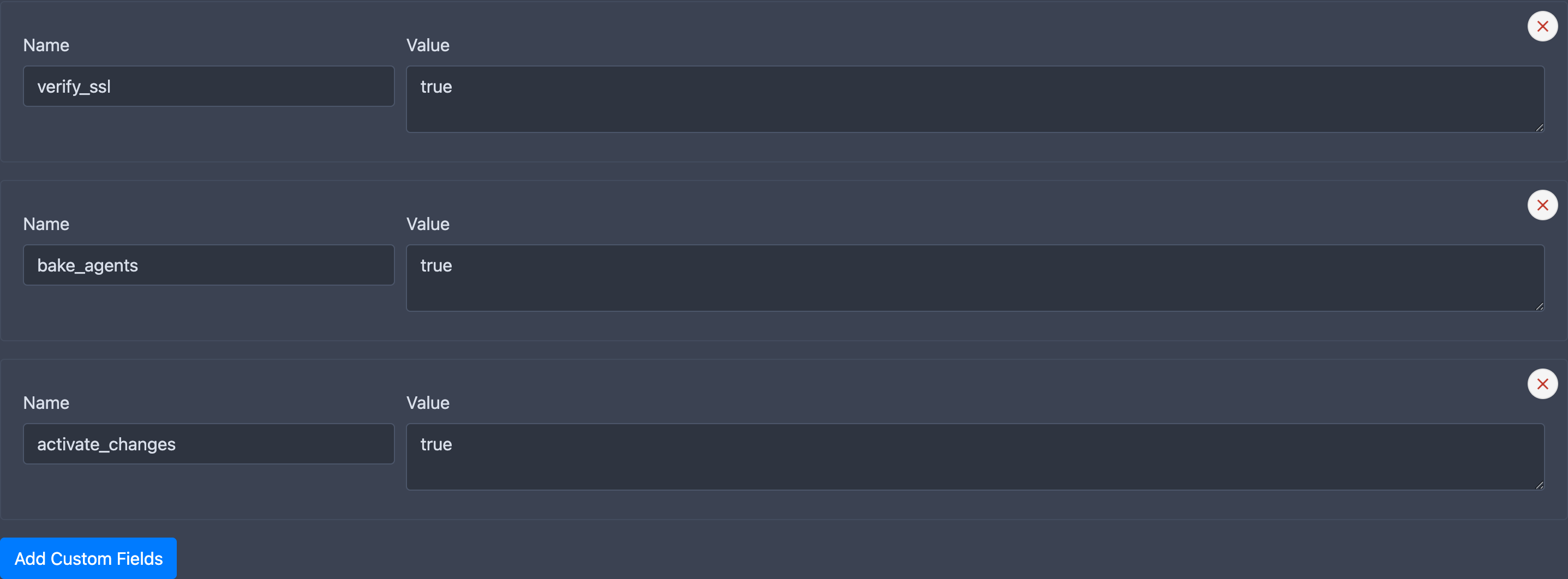
Some account types (e.g. CSV or JSON) require additional plugin-specific fields that are not shown by default. Simply save the account once — the relevant fields will appear automatically afterwards.
Documentation by Account Type
Global Options
delete_host_if_not_found_on_import
Enter a Mongoengine filter in the format fieldname:value to automatically delete hosts that are no longer part of an import. Multiple filters can be combined with || (logical AND). See the Mongoengine filter documentation for the full syntax.
SSL Certificate Verification
Security Notice
SSL certificate verification protects your connections from man-in-the-middle attacks. Always keep verification enabled in production environments.
By default, CMDBsyncer verifies the SSL certificate of every account connection. If your environment uses a custom CA (Certificate Authority) — for example an internal company CA or a self-signed certificate — you must provide the CA certificate files so the syncer can establish a trusted connection.
Fields
These fields are configured as custom fields on the account record. The names below are the exact keys the syncer reads.
| Field | Description |
|---|---|
verify_cert |
Enable or disable SSL certificate verification. Should always be enabled in production. |
ca_cert_chain |
Absolute path to the intermediate CA certificate file (PEM format) on the CMDBsyncer server. |
ca_root_cert |
Absolute path to the root CA certificate file (PEM format) on the CMDBsyncer server. |
How to configure
- Upload your CA certificate file(s) via the Fileadmin — this is the easiest way to get the files onto the server without needing shell access.
- Copy the full path shown in the Fileadmin for the uploaded file.
- In the account settings, paste the path into
ca_cert_chainand/orca_root_cert. - Make sure
verify_certis enabled.
Upload via Fileadmin
The Fileadmin displays the full absolute path for every uploaded file — copy it directly into the certificate field.
CMDBsyncer will automatically merge the provided files into a temporary certificate bundle and use it for all requests made through this account.
Note
Both certificate fields are optional. If your entire CA chain is contained in a single file, filling in only one field is sufficient.
Request Timeout
By default, every HTTP request the syncer makes uses the global timeout (HTTP_REQUEST_TIMEOUT, 30 seconds). If a single target system responds slower — for example a large distributed Checkmk setup where downtime operations fan out to all sites — you can raise the timeout for just that connection.
Add a custom field named request_timeout to the account and set the value in seconds:
| Field | Description |
|---|---|
request_timeout |
HTTP request timeout in seconds for this account (e.g. 300). Overrides the global HTTP_REQUEST_TIMEOUT for all requests made through this account. |
Custom Request Headers
Some target systems are not reached directly but through an API gateway, which wants a header of its own — an API key, a tenant or a correlation id — that the module itself knows nothing about. Every account carries a custom_headers custom field for them, whatever its type, and every HTTP request made through the account sends them.
The field is offered on the account form of every plugin type. An account created before the field existed gets it the next time it is saved.
Write the headers as Name: value pairs, separated by a pipe:
X-API-Key: abc123 | X-Tenant: muc
| Field | Description |
|---|---|
custom_headers |
Extra headers for all requests of this account, as Name: value pairs separated by a pipe. |
The pipe separates instead of a comma because a header value may well contain one (Accept: application/json, text/plain is a single, valid pair). A pair without a colon is skipped and logged as a warning rather than sent as a broken header.
A header the module sets itself — Accept or Content-Type of its own API calls — keeps winning, so a custom header never breaks the module's own protocol.
The value must not be a secret in clear text: reference one that is stored encrypted instead, with the account macro {{ACCOUNT:<account name>:password}}.
Authorization: Bearer {{ACCOUNT:gateway-key:password}}
Headers whose name looks like a credential (Authorization, X-API-Key, X-Auth-Token, Cookie, …) are masked in the debug log.
HTTP Proxy
A target system outside the own network — a ServiceNow instance, a cloud API — is often
only reachable through the corporate proxy, while the systems inside the network must be
talked to directly. Every account carries an http_proxy custom field for that, whatever
its type, and every HTTP request made through the account goes through it.
| Field | Description |
|---|---|
http_proxy |
Proxy for all requests of this account, as a URL (http://proxy.example.com:3128). Used for http and https alike. direct sends this account past a proxy set in the environment. |
Without the field, the proxy stays what the environment of the process says
(http_proxy / https_proxy / no_proxy). The value direct sends a single account
past such a global proxy.
A proxy that wants a login is written as part of the URL. The password must not stand here in clear text: reference an account that keeps it encrypted instead, with the account macro.
http://proxyuser:{{ACCOUNT:proxy-login:password}}@proxy.example.com:3128
Proxy credentials are masked in the debug log, the host and port stay readable.
Extra Plugin Options
In addition to the global account fields, each account can hold plugin-specific options. These allow you to configure behavior that applies only when the account is used for a particular action — even if the same account is reused across multiple operations.
Object Filter
When set, the plugin only processes objects that match the specified object types for this operation.

Reference Fields
You can reference any account field from within your configuration using the {{ACCOUNT:...}} macro. This allows you to avoid repeating credentials or to keep sensitive values out of rule definitions.
Syntax:
{{ACCOUNT:<ACCOUNT_NAME>:<ACCOUNT_FIELD_NAME>}}
Config Children
A Config Child is an account that inherits all settings from a parent account, but overrides the custom fields and plugin configuration.
This is useful when you need slightly different behavior for the same system — for example, different filters or export settings — without duplicating the entire account configuration.